Category: Guides

  • 7 Phone Photography Tips to Take Better Photos

    7 Phone Photography Tips to Take Better Photos

    You don’t need an expensive camera to take great photos. With a few simple techniques, your phone can capture stunning images. Here are seven tips to improve your photography.

    7 Phone Photography Tips to Take Better Photos

    1. Clean Your Lens

    A smudged lens causes blurry, hazy photos. Wipe it with a soft cloth before shooting.

    2. Use Natural Light

    Shoot near a window or outdoors for soft, flattering light. Avoid harsh direct flash.

    3. Tap to Focus

    Tap your subject on the screen to set focus and adjust exposure.

    4. Use the Grid

    Enable the grid to apply the rule of thirds and compose balanced shots.

    5. Hold Steady

    Use both hands or a tripod to avoid motion blur in low light.

    6. Try Different Angles

    Move around your subject — shoot from above, below, or the side for variety.

    7. Edit Lightly

    A small tweak to brightness and contrast goes a long way. Avoid over-editing.

    Quick Reference

    Tip Why it works
    Clean the lens Removes haze, sharper photos
    Use natural light Softer, more natural colors
    Tap to focus Sharp subject, proper exposure
    Use the grid Better composition (rule of thirds)
    Hold steady Prevents blur
    Try different angles More creative, unique shots
    Edit lightly Natural, polished look

    FAQ

    Do I need a tripod for phone photography?

    A small tripod helps with low-light shots and group photos, but is optional for casual use.

    Browse our cameras and photography accessories at wholesale prices.

  • Flash Drive vs External SSD: Which Should You Buy?

    Flash Drive vs External SSD: Which Should You Buy?

    Need portable storage? Flash drives and external SSDs serve different purposes. This comparison helps you pick the right one for your needs.

    Flash Drive vs External SSD: Which Should You Buy?

    Flash Drives (USB)

    Flash drives are small, cheap, and perfect for transferring documents and small files. They plug directly into any USB port and need no cable.

    External SSDs

    External SSDs offer much faster speeds and larger capacities. They are ideal for video editing, backups, and moving large files regularly.

    Comparison

    Factor Flash Drive External SSD
    Read speed Up to ~400 MB/s Up to ~2,000 MB/s
    Capacity Up to 1 TB Up to 8 TB
    Price Low Higher
    Durability Moderate High (no moving parts)
    Portability Tiny Small
    Best for Docs, quick transfer Video editing, backups

    FAQ

    Are flash drives reliable for long-term storage?

    For important data, use an SSD or cloud backup. Flash drives are best for transfer, not archival.

    Browse our storage and flash drives at wholesale prices.

  • WiFi 6 vs WiFi 7: What’s the Difference and Do You Need It?

    WiFi 6 vs WiFi 7: What’s the Difference and Do You Need It?

    WiFi standards keep improving, and WiFi 7 is now arriving. But is it worth upgrading from WiFi 6? This guide explains the differences in simple terms.

    WiFi 6 vs WiFi 7: What's the Difference and Do You Need It?

    WiFi 6 (802.11ax)

    WiFi 6 brings faster speeds, better performance in crowded homes, and improved battery life for connected devices. It is the current mainstream standard.

    WiFi 7 (802.11be)

    WiFi 7 doubles the potential speed and reduces latency further. It shines with multiple high-bandwidth devices, but requires compatible routers and devices.

    WiFi 6 vs WiFi 7: At a Glance

    Feature WiFi 6 (802.11ax) WiFi 7 (802.11be)
    Max theoretical speed 9.6 Gbps 46 Gbps
    Frequency bands 2.4 GHz + 5 GHz 2.4 + 5 + 6 GHz
    Channel width 160 MHz 320 MHz
    Typical latency 10–20 ms ~5 ms
    Key technology OFDMA, MU-MIMO Multi-Link Operation (MLO)
    Backward compatible Yes Yes (with WiFi 6 & older)
    Best for Streaming, browsing 8K, gaming, VR

    Do You Need WiFi 7?

    • Most users: WiFi 6 is plenty for streaming and browsing.
    • Power users: WiFi 7 helps with 8K streaming, gaming, and large file transfers.

    FAQ

    Will WiFi 6 devices work with WiFi 7 routers?

    Yes, WiFi 7 is backward compatible with older devices.

    Browse our network and wireless adapters at wholesale prices.

  • 5 Best Places to Mount Your Car Phone Holder

    5 Best Places to Mount Your Car Phone Holder

    Where you mount your phone holder affects safety, visibility, and convenience. Here are the five best spots and their pros and cons.

    5 Best Places to Mount Your Car Phone Holder

    1. Windshield

    Suction mounts on the windshield keep your phone at eye level. Great for navigation, but can slightly reduce your view.

    2. Dashboard

    Dashboard mounts keep your phone accessible without blocking the windshield. Best for larger vehicles.

    3. Air Vent

    Vent mounts are compact and easy to install. They may block airflow and are less secure on rough roads.

    4. CD Slot

    If your car has a CD slot, this is a stable, unobtrusive option.

    5. Cup Holder

    Cup holder mounts work well for larger phones and tablets, though they take up a cup space.

    Quick Comparison

    Position Pros Cons Best for
    Windshield Eye-level, strong suction May reduce view Navigation
    Dashboard Stable, clear windshield May leave marks Large vehicles
    Air vent Compact, easy install Blocks airflow Quick access
    CD slot Secure, no adhesive Uses CD slot Older cars
    Cup holder Holds large devices Wobbly, uses cup space Tablets, rentals

    FAQ

    Is it legal to mount a phone on the windshield?

    Laws vary by region. Check local regulations and keep your view clear.

    Browse our car phone holders for mounts for every position at wholesale prices.

  • Charging Port Types Explained: USB-C vs Lightning vs Micro-USB

    Charging Port Types Explained: USB-C vs Lightning vs Micro-USB

    Confused by the different charging ports? USB-C, Lightning, and Micro-USB each have their own role. This guide explains the differences and which cables you need.

    Charging Port Types Explained: USB-C vs Lightning vs Micro-USB

    USB-C

    USB-C is the modern standard, used by most Android phones, tablets, and laptops. It is reversible, supports fast charging, and can transfer data at high speeds.

    Lightning

    Lightning is Apple’s proprietary port used on older iPhones. It is compact and reversible, though newer iPhones are switching to USB-C.

    Micro-USB

    Micro-USB is the older standard, found on budget devices and older accessories. It is slower and not reversible.

    Which Cable Do You Need?

    • Modern Android: USB-C
    • Older iPhone: Lightning
    • Older devices: Micro-USB

    FAQ

    Is USB-C the future?

    Yes. USB-C is becoming the universal standard across phones, laptops, and accessories.

    Browse our chargers and cables for all cable types at wholesale prices.

  • Why Do Clear Phone Cases Turn Yellow? (And How to Stop It)

    Why Do Clear Phone Cases Turn Yellow? (And How to Stop It)

    A clear phone case is the easiest way to protect your phone and still show off its design. But after a few weeks or months, almost every clear case starts turning yellow or brown around the edges. Here’s exactly why it happens — and what you can do to keep your case clear for longer.

    Clear phone case that resists yellowing
    A clear phone case with an anti-yellowing, UV-stabilized design.

    Why do clear phone cases turn yellow?

    Most clear cases are made of TPU (thermoplastic polyurethane) or a mix of TPU and polycarbonate (PC). TPU is soft and grippy, but it’s also the part that yellows first. The main causes are:

    • UV light (sunlight). This is the #1 cause. Ultraviolet rays break down the polymer chains in TPU, triggering an oxidation reaction that turns the material yellow or brown.
    • Oxidation. Even without direct sun, exposure to oxygen and ozone slowly degrades the material over time.
    • Skin oils, sweat, and lotions. Oils from your hands transfer to the case and accelerate discoloration.
    • Heat. Heat from the phone itself, your pocket, or a hot car dashboard speeds up the chemical reactions.
    • Cheap materials. Lower-grade TPU yellows much faster. Hard polycarbonate (PC) backs stay clear far longer than soft TPU frames.

    How to prevent yellowing before it starts

    • Buy “anti-yellowing” or UV-stabilized cases. Look for cases that specifically say anti-yellowing or UV-resistant — these are treated to resist UV damage.
    • Choose a PC + TPU hybrid. A hard PC back with a soft TPU frame gives you grip and shock absorption, while the PC back stays clear much longer.
    • Avoid long sun exposure. Don’t leave your phone on a sunny windowsill or a hot car dashboard.
    • Wipe it down regularly. Every few days, wipe the case with a soft cloth to remove oils and sweat.
    • Consider a matte finish. Matte clear cases hide minor yellowing and fingerprints better than glossy ones.

    How to clean a yellowed case

    • Mild dish soap + warm water. Mix a few drops of dish soap in warm water, scrub with a soft toothbrush, rinse, and dry. This removes surface grime and oils.
    • Baking soda paste. Make a paste of baking soda and water, apply it to the yellowed areas, leave for 15–20 minutes, then scrub gently and rinse.
    • Isopropyl (rubbing) alcohol. Wipe with 70% alcohol to lift surface discoloration. Test a small area first.
    • Know the limit. If the yellowing is deep — meaning the material itself has oxidized — cleaning won’t reverse it. Surface cleaning only helps with oils and light staining.

    When it’s time to replace your case

    Clear cases are consumable. Even good ones typically stay clear for 6–12 months of regular use. If cleaning doesn’t help and the yellowing bothers you, it’s time for a fresh one — the protection is still intact, so it’s purely a cosmetic decision.

    What to look for when buying a clear case

    • Anti-yellowing / UV-resistant material
    • Hard PC back + soft TPU frame
    • Precise cutouts for the camera, ports, and buttons
    • Strong reviews on durability

    If you want a clear case built to stay clear longer, take a look at our magnetic clear phone case — it pairs a clear PC back with MagSafe-compatible wireless charging, so you get the protection without losing the phone’s original look.

  • How to Clean and Maintain Your Phone Case (Simple Tips)

    How to Clean and Maintain Your Phone Case (Simple Tips)

    Your phone case collects dirt, oils, and bacteria every day. Regular cleaning keeps it looking new and protects your phone. Here is how to clean it properly.

    How to Clean and Maintain Your Phone Case (Simple Tips)

    Cleaning by Material

    • Silicone: Wash in warm soapy water, rinse, and air dry.
    • TPU/Plastic: Wipe with a damp cloth and mild soap.
    • Leather: Use a leather cleaner and avoid soaking.
    • Clear cases: Avoid harsh chemicals that cause yellowing.

    How Often to Clean

    Wipe your case once a week, and do a deep clean monthly. Clean more often if you use your phone during meals or workouts.

    Preventing Yellowing

    Clear cases yellow over time from UV exposure. To slow it down, keep your phone out of direct sunlight and clean the case regularly.

    FAQ

    Can I use alcohol to clean my phone case?

    A 70% isopropyl alcohol wipe is safe for most hard cases, but avoid soaking leather.

    Browse our phone cases and covers for quality cases at wholesale prices.

  • Wired vs Wireless Earphones: Which Is Right for You? (2026)

    Wired vs Wireless Earphones: Which Is Right for You? (2026)

    Should you go wired or wireless? Each has clear strengths, and the best choice depends on how you use your earphones. This comparison helps you decide.

    Wired vs Wireless Earphones: Which Is Right for You? (2026)

    Wired Earphones

    Wired earphones plug directly into your device. They deliver reliable sound with zero latency and never need charging — ideal for gaming and video editing where audio delay matters.

    Wireless Earphones

    Wireless earbuds offer freedom from cables and are perfect for commuting, workouts, and calls. Look for Bluetooth 5.0+ for a stable connection and long battery life.

    Comparison

    Factor Wired Wireless
    Latency None Low (Bluetooth 5.0+)
    Battery Not needed Needs charging
    Durability Longer lifespan Battery degrades
    Convenience Less More

    FAQ

    Are wireless earphones good for gaming?

    For competitive gaming, wired is better due to zero latency.

    Browse our headphones and microphones for wired and wireless options at wholesale prices.

  • How to Choose a USB-C Hub: Complete Buying Guide (2026)

    How to Choose a USB-C Hub: Complete Buying Guide (2026)

    A USB-C hub turns your laptop’s single port into multiple ports for monitors, storage, and peripherals. But not all hubs are created equal. This guide explains what to look for so you pick the right one.

    How to Choose a USB-C Hub: Complete Buying Guide (2026)

    Key Ports to Consider

    1. HDMI: For external monitors. Look for 4K@60Hz support.
    2. USB-A ports: For older peripherals like keyboards and mice.
    3. USB-C passthrough: For charging your laptop while using the hub.
    4. SD/microSD card readers: For photographers and content creators.
    5. Ethernet: For a stable wired connection.

    Power Delivery (PD) Matters

    If you want to charge your laptop through the hub, check the PD rating. A hub with 100W PD can power most laptops, while 60W suits thinner ultrabooks.

    Compatibility

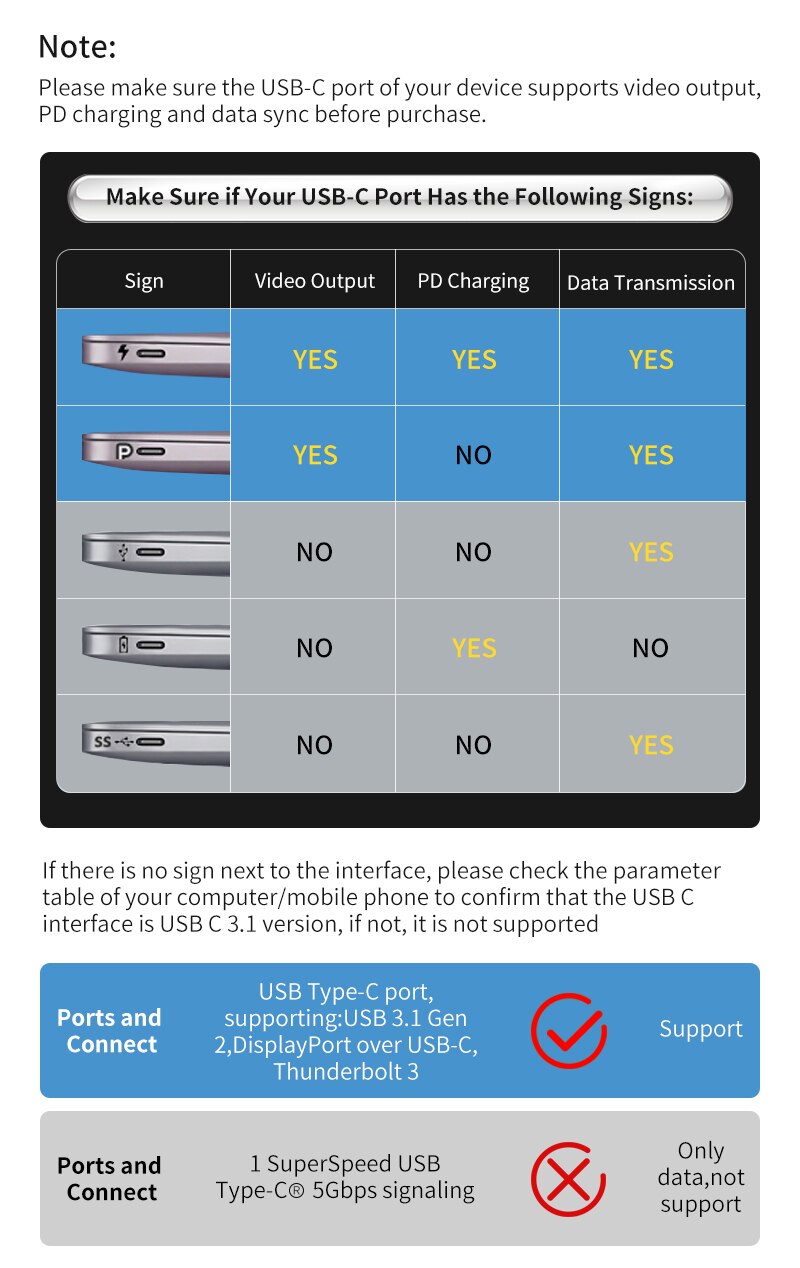
    Make sure the hub matches your laptop’s USB-C standard. Thunderbolt laptops can use USB-C hubs, but check for any speed or display limitations.

    FAQ

    Do all USB-C hubs work with all laptops?

    Most USB-C hubs work across devices, but display and charging features can vary by laptop.

    Does a hub slow down my devices?

    Cheap hubs may limit speeds. Choose a quality hub rated for your needs.

    Browse our USB hubs and card readers at wholesale prices.

  • Why Your USB-C Cable Matters More Than Your Charger (2026 Guide)

    If your phone is charging slowly, the cable is often the real culprit — not the charger. A low-quality or mismatched USB-C cable can cut your charging speed in half, no matter how powerful your adapter is. Here is why the cable matters so much and how to choose the right one.

    The Cable Limits Your Charging Speed

    USB-C cables are not all the same. Some support only 3A of current, while others handle 5A for fast charging. If your cable is rated for 3A, your 65W charger will be limited to 60W or less. Matching the cable to your charger and device is the single biggest factor in charging speed.

    What to Look For in a USB-C Cable

    1. Wattage rating: Check the cable’s maximum wattage. For fast charging, look for 60W or 100W rated cables.
    2. Data speed: USB 3.0 or higher if you transfer files, not just charge.
    3. Build quality: Braided nylon cables last longer than plain rubber ones.
    4. Certification: Look for USB-IF certified or E-marker chips for high-wattage cables.

    Quick Tips for Faster Charging

    • Use the cable that came with your device, or a certified replacement.
    • Keep connectors clean — dust in the port can slow charging.
    • Avoid very long cables for fast charging; shorter cables lose less power.

    FAQ

    Why is my phone charging slowly even with a fast charger?

    Most likely your cable does not support the charger’s wattage. Try a higher-rated cable.

    Do all USB-C cables support fast charging?

    No. Only cables rated for the required current and wattage support true fast charging.

    Browse our chargers and cables for quality USB-C cables at wholesale prices.